
Guides
Best Way to Stop Nest Thermostat from Changing Temperature.

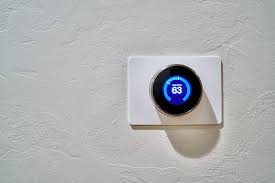
Whether you’re using the Google Home app or the device directly, you can set the Google Nest Thermostat to maintain a certain temperature. Here’s how to keep the temperature set on your Nest thermostat:
- Adjust your Nest’s temperature for either heating, cooling, or both.
- Choose the “Hold Temperature” button, represented by a little clock face.
- The current temperature might be used, or the Eco
- Choose the time at which you’d like this temperature hold to expire.
- If you want the current temperature to persist permanently when in Eco mode, choose “None.”
- Confirm your hold by tapping the button.
Although the Nest thermostat’s numerous customizable capabilities make it easy to get the ideal temperature for any given situation, mastering them may take some time for both you and your device.
How to Maintain a Constant Temperature with Your Nest Thermostat?

In 2011, Google released its Nest Thermostat, also known by its brand name. The Nest may be programmed to regulate the temperature in your house in the same way that conventional thermostats have for decades.
It can adjust the temperature of the whole home’s heating and cooling systems.
The Nest Thermostat provides more than just a pleasant environment thanks to its Wi-Fi connectivity and programmability.
It can “learn” your routine and adjust the thermostat accordingly, taking into account things like the weather, the number of people at home, and the time of day.
But there are instances when it makes no sense for the Nest to follow its typical routine.
Do you have plans for a lengthy trip? Do you plan on entertaining a sizable number of guests at your home? In these cases, it may be preferable to run the Nest manually or have it maintained the current temperature. Here’s how to take temporary control of your Nest preferences:
The Nest Thermostat may be set to maintain a certain temperature using the Google Home app or manually. The Hold Temperature button, which resembles a little clock face, is available whenever you set your Nest to Heat, Cool, or Heat.
If you want to save money on utilities, choose Eco instead of the current temperature. The temperature hold will expire at the time you choose, such as when your visitors leave or when you get home from vacation.
In Eco mode, you may choose “None” to have the temperature hold forever; just remember to remove the hold when you want the Nest to resume its normal routine. After making your settings, press the “Confirm” button and take in the ambience!
When using a Nest thermostat, how do you set a temperature lock?
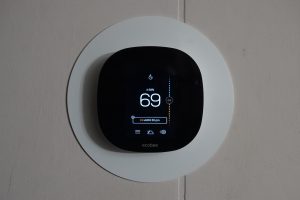
If you wish to prevent unauthorized adjustments to the temperature on your Nest device, you may lock the setting.
Locking temperatures will keep the home at a consistent temperature regardless of how many people are in it or how many times the brightly colored Nest gadget is twirled and tapped on by curious youngsters or adults.
When you set the temperature, a four-digit PIN will be required to unlock the system. Remember the Nest’s passcode so you can get in whenever you want.
Choose a temperature range for any manual adjustments after switching to Hot Mode or Cool Mode. The app has a five-degree minimum range.
Nevertheless, if you secure your Nest via the wall panel, you have granular control over the temperature setting, down to the degree.
Hot/Cold Mode allows you to choose a temperature differential of two degrees or more.
To secure the temperature of the device:
- The Quick View menu may be accessed by tapping the ring.
- To access the gear icon for Settings, turn the ring and press the icon.
- To activate Lock, just tap its icon. Repeat tapping to verify.
- Put in a four-digit password. Choose a set of numbers that will be easy to recall when you’re ready to enter the nest.
- Your PIN must be entered twice for verification.
- Choose a temperature range for your lock by entering its lowest and maximum values.
- After you’ve made the desired adjustments, choose “Done.”
- Once you lock your Nest thermostat, a little lock symbol will appear on the screen.
Nest Thermostat App Locking Procedure:
- Launch the app and choose the proper gadget.
- Choose Preferences from the drop-down menu at the top right of your screen.
- Choose “lock” from the options.
- Put in a four-digit password.
- The minimum and maximum temperatures may be adjusted using the slider bars.
- The Lock button on the screen’s bottom allows you to verify your changes.
Because you no longer have the choice to lock your Nest thermostat, you will be able to tell whether or not you are in lock mode by checking the app. The “Lock” option will now be available for these configurations.
Unlocking your Nest product requires that it be connected to the internet. The nest itself is where you’ll input the PIN, first by rotating the ring and then by typing in the last digits.
When unlocking the thermostat using the mobile app, the PIN is unnecessary. Instead, anybody who has access to your smartphone via the app may use the same procedures to reach the “Unlock” option.
Is there a manual way to adjust a Nest thermostat?
You can’t always take the reins of your nest and steer it by hand since there is no true “manual” option. You may, however, pause the auto-schedule if necessary.
https://www.smarthomelivinginsider.com/does-nest-thermostats-contain-cameras-or-microphones/
Then, from the device’s main menu, tap the Schedule Calendar button, and then, using the wheel, pick the day you’d like the updates to begin.
You may enter the settings by tapping the screen when the time and temperature you want to change appear. Your Nest will inquire as to whether or not you would:
- Change
- Remove
- Cancel
You’ll now have to manually adjust the temperature by tapping “Change.” Drag the time slider to adjust the temperature, and touch the screen to save your adjustments. The temperature may be changed with a second scroll, and the setting is confirmed with a touch.
Choose “Remove” from the menu that appears when you right-click on a scheduling point to remove it.
The Nest app is another manual control option. Once again, the preexisting auto schedule must be overwritten. If your Nest thermostat is not locked, you may adjust the temperature from your mobile device by dragging the sliders.
The ideal course of action is to first use the Hold Temperature function we covered and then make minor updates and tweaks as needed. Make sure Heat/Cool Mode is always selected on your device so you may use the entire temperature range of your HVAC system.
Locking the thermostat with a personal identification number may help prevent unauthorized users from altering the temperature setting.
If a Nest thermostat keeps adjusting the temperature, why is that happening?
This is where Nest’s learning thermostat comes in handy. So, it will try to set the temperature to what you would normally set at that time of day. The Nest will “learn” to lower the temperature after a certain time of day if, for example, you prefer a colder temperature at night.
Let’s say you don’t want the Nest to automatically alter the temperature but instead maintain a constant level. In such a scenario, switch off Auto-Schedule to stop it from learning your habits. If you’ve had enough of your temporary temperature hold, you can always activate it again.
https://youtu.be/oQI4LvInf8I?si=YXTYcbtYDW0s2Sg2
Nest Learning Thermostat: How to Turn It Off
The Nest model you have will determine whether or not your thermostat can learn.
Nest Learning Thermostat with Auto-Scheduling
Basic Programming for the Nest Thermostat E
The Nest Thermostat’s Timer is a Convenient Way to Save Money
The following steps will disable the auto-schedule function on your Nest Thermostat E or Nest Learning Thermostat:
- Choose “Settings” (the cogwheel icon) in the Nest app or on the device itself.
- To turn off auto-scheduling, you’ll need to go into the app’s settings and find the option there.
- To modify settings directly on the device, pick:
- “Nest Sense”
- Programmable Timer
- Off
If you want to put a hold on the temperature but don’t want it to be overridden, you may want to delete any current schedules. The scheduling function is where you’ll need to go to do this. If you have a Nest Thermostat E, you may schedule your thermostat by pressing the ring and then selecting Schedule.
Depending on your version of Nest, you may clear the schedule by selecting either “Reset” or “Clear.”
After you’ve freed up time, it’s important to maintain a pleasant environment.
https://youtu.be/5yr7Vo_HtK8?si=H_tDhS9KfGtI7u6i
FAQS
- What Is the Best Way to Make a Timetable or Alter an Existing One?
The Nest thermostat’s ability to tailor indoor temperatures to your preferences and routines is a major selling point, but there may be occasions when a custom manual schedule is preferable. It’s useful when you have to make a quick adjustment to your normal schedule or the weather.
To do so through the Nest app, launch the app and choose the desired device. Afterwards, you’ll go to the Schedule section, which looks like a calendar but has a clock instead of days.
You may set the temperatures you desire at certain times of the day from this screen.
This may also be done directly on the Nest device. Depending on the version of Nest you have, you’ll access the schedule via the quick view menu, then go to settings, and finally schedule.
Keep in mind that when no one is home, Nest thermostats automatically switch to “Eco Temperatures,” reducing your heating and cooling costs.
- How Do Nest Thermostat Eco Settings Work?
Savings from your HVAC system are maximized at Eco Temperatures. When used for heating, they sit in the 40–70 °F (4–21 °C) range, whereas when used for cooling, they sit in the 76–90 °F (24–32 °C) range.
A little green leaf and the letters “ECO” will appear on the screen to indicate that your system is using Eco Temperatures.
Here are a few methods to instruct your Nest system to take advantage of eco-temperatures:
- When Nest detects no one is home, it turns off automatically.
- While you are away and have the Nest app set to “Away” mode,
- While you’re at home, turning the temperature up or down manually might help reduce your heating and cooling costs.
Keep in mind that the Nest will hold its current settings until the next time it is programmed to make an automatic adjustment. As a result, it is crucial to keep track of the adjustments you’ve made and make any necessary adjustments to the master schedule.
- How do I put the thermostat in auto mode?
The Nest thermostat may be set to temperatures that are comfortable for you. When the thermostat is set to the “Heat” position, however, it will only choose temperatures from the heating system.
If you switch your thermostat to the “cool” setting, just the cooling and ventilation systems will be activated.
The Heat*Cool mode combines the heating and cooling systems to maintain the temperatures you choose, allowing you to experiment with a wide variety of settings to find the sweet spot for your comfort. Turn on auto scheduling by choosing it from the Settings menu.
Your Nest thermostat may learn your preferred temperature and ventilation schedule if you use the Auto Schedule mode. There are just a few things to keep in mind before you begin:
The Nest Learning Thermostat and Nest Thermostat E are the only thermostats that support the Auto Schedule feature.
Unlike the Nest Learning Thermostat, the Nest Thermostat E may be set to operate on a variety of predetermined schedules.
Unless you modify it or until the next scheduled temperature change, the Nest Thermostat E will maintain the current setting. To educate the Nest when to override a program, manually adjust it in Auto Scheduling once a program has been chosen.
In the first phases of auto-scheduling, the Nest Learning Thermostat will maintain the current temperature until it is manually adjusted.
It will take your Nest thermostat about a week to figure out how you want the temperature set. Whether you adjust the temperature once a week or once a day, it will remember that and apply the setting accordingly.
If you adjust the Nest’s settings on consecutive weekdays in the same way, it will only make that modification on weekdays going forward.
If you tell the Nest to make the same adjustment on the same day of the week for two consecutive weeks, it will continue to do so on that day every week. If you make the same adjustment to Nest’s schedule on both a workday and a weekend, it will be applied on both days.
- How can I improve my Nest thermostat?
The Nest thermostat maximizes the efficiency of your HVAC system. It’s wise, therefore, to make use of the options that allow you to stretch your budget without compromising the level of comfort you enjoy in your house.
To help you discover the optimal settings for your home and budget, both the device’s Eco Temperature settings and the app’s Savings Finder may provide helpful recommendations.
Other options may be available on your device that further enhance your relaxation.
With Early-On, your house will be comfortably at your desired temperature before the timer goes off.
If you want your house to be at a comfortable 75 degrees when you get home from work at 5 o’clock, you may set an early-on schedule to get the temperature up to that set temperature exactly at 5 o’clock.
The presence of a phone or other device linked to the Nest, as well as the Nest’s activity sensors, allows for a “presence sensing” capability to be activated. Only the Nest Learning Thermostat and the Nest Thermostat E have this feature.
Your energy use over the previous 10 days may be tracked using this function. The times and lengths of operation of your HVAC system are shown as orange bars. By comparing energy reports, you may see how various adjustments to your auto-schedule have affected your overall power use.
If you want to get the most out of your Nest thermostat, remember to use the “Eco Temperatures” feature. Don’t give in to the urge to utilize extreme heat or cold.
It’s a frequent fallacy that changing the thermostat above or below your chosen setting will make the home warmer or cooler, respectively.
You may be certain that your HVAC system will react according to the preferences you have specified. Changing the schedule or activating Early-On might speed up the time it takes for your house to achieve the desired temperature.
Conclusion
If you want the convenience of automatic functions but also like the option to override them manually, the Nest thermostat is a great tool for you. You may get Nest thermostats with programmable options, budget-friendly temperature settings, and more, depending on the model you choose.
To get the most out of your Nest thermostat and prevent unauthorized adjustments, you may either alter the settings yourself or lock the device.
Season, location, weather, and house construction may all affect the perfect temperature settings for your Nest thermostat, but you can always find a way to make everyone comfortable inside.




6 Phone Numbers to Call for Music That Still Work (Tested 2026)
In an age of instant streaming on Spotify and Apple Music, the idea of looking for phone numbers to call...


The Ultimate Guide to Modern Bathroom Renovations
The bathroom is no more a simple functional area monitored somewhere in the corner of the house, it has become...


Custom Blinds in Canada: Fit, Finish, and Daily Function
A home is often defined by its windows – the portals that connect our private sanctuaries with the outside world....


Homeowner’s Guide: Practical Tips for Preventing Costly Roof Damage
A home’s roof often sits out of sight and out of mind, so trouble tends to build quietly. Signs appear...


How to Spruce Up Your Home’s Exterior Before Decorating it?
Holiday decorating is always more fun when the stage is set, and nothing sets that stage better than a refreshed...


When Preparedness Becomes a Homeowner’s Best Asset?
What do you do when something at home breaks at the worst possible time? Maybe it’s a leaky roof during...


From Repairs to Renovations: How to Keep Your Home in Top Shape?
Keeping a place in great shape requires attention, time, and smart planning. Small fixes often grow into bigger projects if...


The Most Overlooked Structural Issues in Older Homes
Older homes often carry a charm that newer properties cannot replicate. They offer character, history, and distinctive design. Yet many...


More Than a Change of Address: How to Feel at Home in a New City
Ever unpacked a box of dishes and suddenly felt like a stranger in your own life? It happens. You move...


The Steps That Make Transitioning Into a New Home More Manageable
Moving into a new home feels exciting, yet many people find the process stressful when tasks pile up unexpectedly. A...


How to Tell If Your Water Heater Is Costing You More Than It Should?
If you live in St. Charles, you’ve probably seen your utility bills rise over the past few seasons — even...


Small Space Styling Ideas Featuring the Globule Gold Leafing Console
Small interiors demand furnishings that deliver both style and function without overwhelming the room. The Globule Gold Leafing Console offers...


Budget-Friendly Ways to Modernize an Older Home
If you live in Boulder, you probably know how charming older homes can be. Many of them have character, personality,...


From Cleanup to Care: A Homeowner’s Guide to Storm Recover
Storms can leave families dealing with damaged walls, soaked flooring, and scattered debris. In Northeast Georgia, where strong weather can...

What Are Design Trends That Elevate Homes from Ordinary to Exceptional?
Ever walked into a home that just felt special? It might have been the layout, the lighting, or even the...


Can’t Beat the Chill at Home? Here’s What Might Be Going Wrong
When winter sets in, it often exposes problems in your home you might not have noticed during the warmer months....


Energy-Efficient Home Improvement Projects That Cut Bills
Ever looked at your electric bill in Pennsylvania during winter and thought, “Did I start heating the neighborhood by mistake?”...


Just Moved In? Here’s How to Make Your Home Winter-Ready
Moving into a new home brings a sense of accomplishment, boxes are unpacked, furniture is in place, and the space...


How Coastal Homes Stay Reliable Year After Year?
Coastal homes capture a kind of beauty that few other places can match. Waking up to the sound of waves,...


Your Complete Seasonal Home Tune-Up Checklist: What to Do Every 6 Months?
Seasons come and go, and your home works hard to keep up with the changes. From running your air conditioning...


Energy-Efficient Roofing Solutions in NJ | Yukor Construction
When planning a roof replacement, many homeowners think first about appearance and protection from leaks. But in today’s conditions, a...


Preventative HVAC Care: Avoiding Costly Breakdowns Before They Happen
A reliable HVAC system is essential for maintaining comfort, air quality, and energy efficiency throughout the year. Yet, many property...


If I Unblock Someone on iMessage, What Happens?
In today’s global world, it is necessary to stay in touch with friends, family and colleagues. Apple IMessage service is...


How Smart Pool Cleaners Integrate with Home Automation Systems?
In today’s smart home world, the robot pool cleaner is no longer a utility device but rather is now a smart,...


What Causes an Electric Motor to Hum and not work
One of the most common machines is those that are powered by electric motors. At times, however, these motors can...


How to Find Your Verizon Account Number
Introduction So Verizon is a popular messaging service and calling app that provides the option of free call and phone...


How to Delete Read-Only Contacts: Android & iphone
Introduction It is simple to delete read-only contacts on the Android and iPhone but a question arises here: how can...


How to Find Saved Videos on My Phone
Introduction Nowadays the integral part of our life is the mobile phone. We create so many memories everyday and store...

You Can’t Message This Account: Messenger Fixed
Introduction Facebook messenger is one of the most popular messaging apps globally to connect with other people throughout the world....


Delete Text Messages on iPhone for Both Sides
Introduction It is simple to delete messages on the iPhone but a question arises here: how can we delete messages...


Why Won’t My Call Go Through to a Certain Number?
Introduction In today’s fast-paced world, staying in touch with everyone is important. For this purpose, we use our phone to...


Call Ends Immediately After Dialing on Android
Introduction In today’s fast-paced world, staying in touch with everyone is important. For this purpose, we use our phone to...


What Is Logitech Download Assistant?
Logitech is famous throughout the world for their amazing computer accessories including mouse, keyboard and headsets. These devices come with...


Does a Canceled Call Go Through on iPhones?
Introduction In today’s digital world there are new and exceptional ways for connecting with each other. Communication has also evolved...


How to Create an INI File on Windows, Mac, Android
Introduction The files that are used to store settings and configuration for the software application are known as INI files....


How Long Do AirPods Take to Charge from Dead?
Airpods Pro are one of the best and most popular airbords that are wireless and available in the market nowadays....


PS4 Controller Charging but Not Connecting
Introduction Many people play PS4 games nowadays but sometimes they encounter a frustrating issue which is that their controller is...


How to Fix IMS Registration Status Not Registered
Introduction IMS stands for IP multimedia system which is present in carrier rn smartphones that play a crucial role in...


Rythm Discord Bot: What It Is and How to Use It
Introduction Discord has been extremely popular nowadays aur communication among gamers technicians and other communities that want to stay connected...


Where Is the Volume Button on a Vizio TV
Introduction It is easy to find the volume button on the Vizio TV but it can be difficult for a...


Smart Travel Hacks by CWBiancaVoyage: Your Ultimate Guide
Introduction Traveling can be both exhilarating and overwhelming. Whether you’re a seasoned globetrotter or a first-time explorer, the journey often...


Call Error: “The Number You Are Trying to Call Is Not
Introduction Few things are more frustrating than dialing a number only to hear the automated message: “The number you are...


Marketing Automation: A Complete Guide to Smarter Growth
Introduction In today’s digital marketplace, speed, personalization, and efficiency are no longer optional—they are essential. Marketing automation has emerged as...

Do Smart Plugs Use Alot Of Electricity?
In addition to the fact that they are more convenient, smart plugs are intended to help you save money by...


How to Adjust The Temperature On ECOBEE Smart Thermostat?
The Ecobee Smart Thermostat is an advanced piece of equipment that can effectively substitute for your old thermostat. It may...


Top Cheap Gaming Monitors On A Budget
Introduction It is difficult to find a gaming monitor that is affordable and also of great quality. But today the...


Subscriber You Have Dialed is Not in Service
Introduction In today’s fast-paced world, staying in touch with everyone is important. For this purpose, we use our phone to...


What to Do if Spectrum Internet Keeps Dropping, Cutting, Going Out
Introduction It is easy to find the dropping, cutting, going out problem on the Spectrum internet but it can...


How to Sign Into iMessage on iPhone
Introduction In today’s global world, it is necessary to stay in touch with friends, family and colleagues. Apple IMessage service...


The Top 10 Belts for Ab Exercises
You will need to follow a regimented eating plan and training program to get abs like a washboard. However, in...

10 Best Smart Plugs For SAMSUNG Smart Things.
Smart plugs have the potential to have a major effect homes beyond initial expectations. These devices are engineered to enhance...


How To Link An Older Bose Sound System To A Newer Television?
Bose systems are used in the development of high-quality sound systems as well as portable electronic gadgets. Many different Bose...


10 Best Apps To Control All Your Smart Home Devices.
10 Best Apps To Control All Your Smart Home Devices are the kinds of smart home gadgets that used to...


Smartwatch Features: A Comprehensive Overview of Their Capabilities
Trying to choose the perfect smartwatch may be a daunting task, as you’ll want to find one that satisfies your...

Are Smart Locks Hard To Install Find Out Here?
There are several compelling reasons why installing smart locks in a home may be a very worthwhile investment. You won’t...


10 Most Cutting-Edge TVs with Touch Screens
A touch screen TV is a kind of television that can be controlled by touching the screen. This cutting-edge innovation...


How Many Smart Devices Can You Connect To Alexa?
The more gadgets you connect to Alexa, the higher your home’s intelligence will be. Connecting Alexa-enabled smart home devices like...


How To Make Smart Bathroom By Using 5 Gadgets?
The world we live in is completely immersed in advanced technology. Technology makes life simpler in every aspect, from cellular...

Interesting Things About Ecobee Firmware Upgrades.
All smart devices, including smart thermostats, need periodic software upgrades. Firmware is the term used to describe the software that...


What Is Lg Tv Plus And How Its Works And How To Connect To Tv?
When it comes to Smart TVs, LG is a top contender. The two most common brands of televisions are LG...
-
Guides2 years ago
10 Best Apps To Control All Your Smart Home Devices.
-
 Gadgets3 years ago
Does Nest Thermostats Contain Cameras Or Microphones? Is It Safe For you?
-
 Gadgets3 years ago
What Is The Purpose Of Red Button On The SimpliSafe Keypad?
-
 Gadgets3 years ago
Complete Guide About Equalizer settings for Samsung-Soundbar
-

 Accessories3 years ago
Can Siri Control Samsung Televisions And Are Samsung TVs Homekit Compliant?
-
Guides3 months ago
6 Phone Numbers to Call for Music That Still Work (Tested 2026)
-
 Accessories3 years ago
Blink Camera’s Temperature Sensor Settings, and More
-

 Accessories3 years ago
Can Ring Cameras and Other Ring Devices Be Connected to Multiple Networks?